
How to Confirm Your Event Sign-Up as a speaker
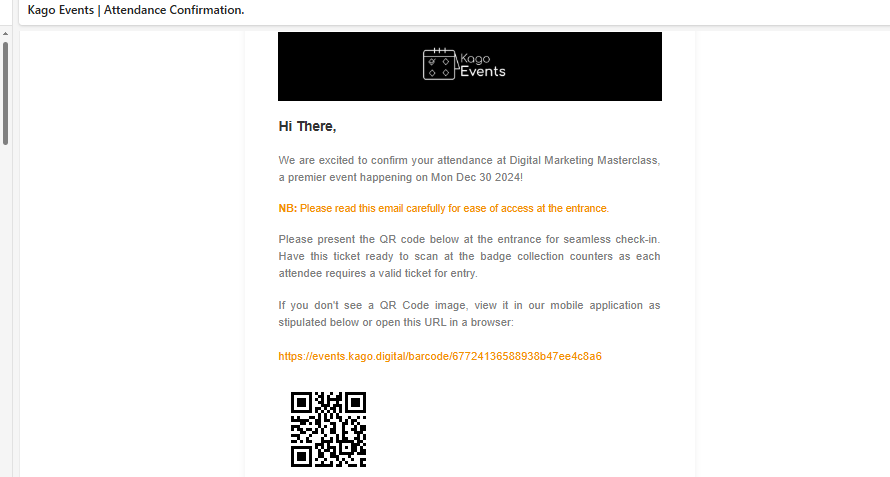
- Check Your Email: After signing up, you’ll receive a confirmation email with event details and a QR code.
- Save the Email: Keep it handy for quick access at the venue.
- Use the QR Code: Present the QR code at the entrance for seamless check-in.
- Troubleshooting: If the QR code doesn’t display, use the backup link in the email or access it via the Kago Events app.
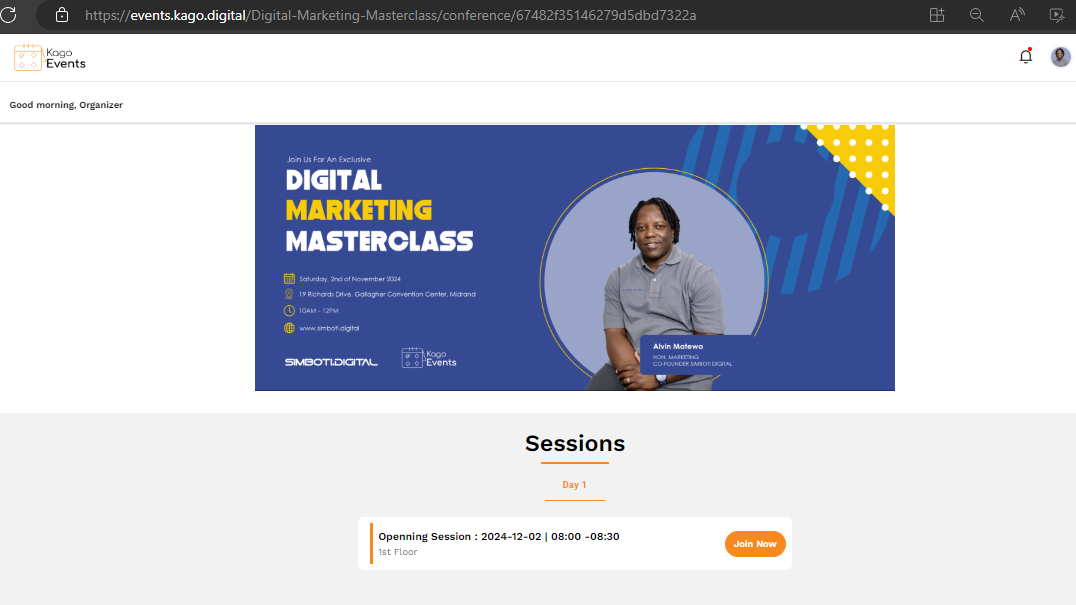
Click “Join Now”:
- Click on the orange “Join Now” button next to the session details to access the session.
Follow the Instructions:
- Click join now to access the event and test your microphone, camera, and internet connection.
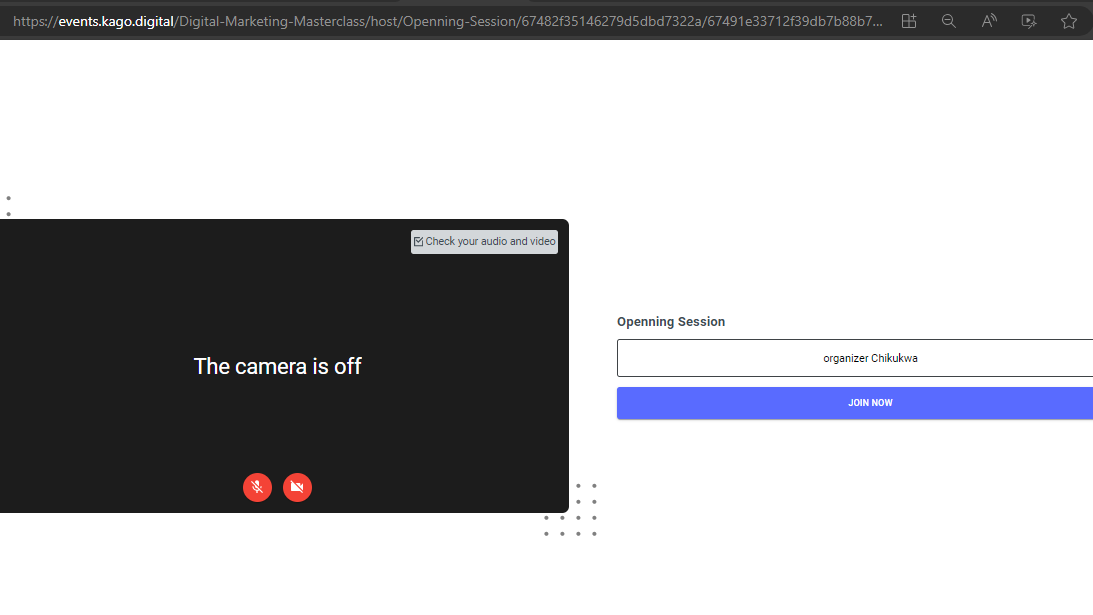
You are directed to a video conferencing tool or a live streaming page.
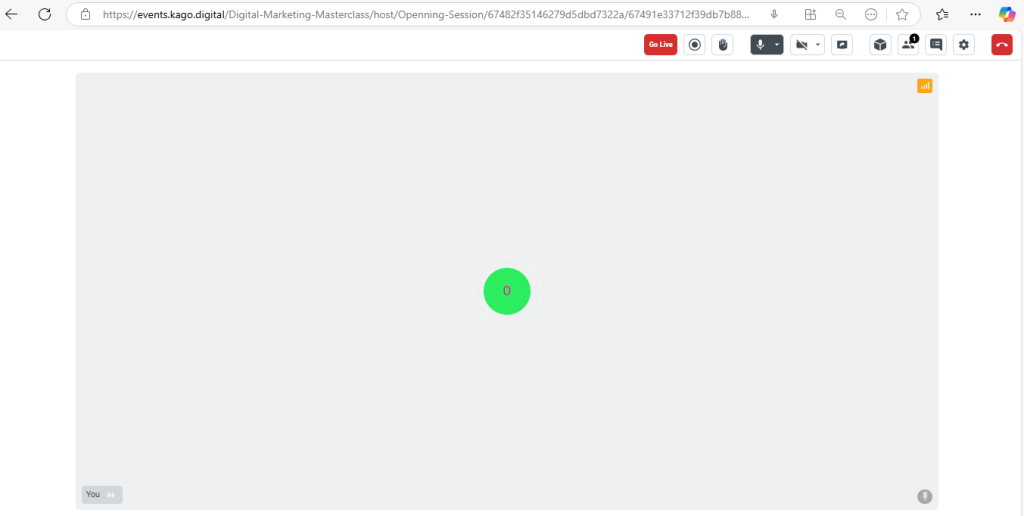
Managing Your Audio and Video
- Use the controls at the top right of the screen:
- Microphone Icon: Click to mute/unmute your audio.
- Settings Icon: Adjust audio and video settings if needed.
- Camera Icon: Click to enable/disable your video.

Engaging with Attendees
- Hand Icon: Allows you to see if attendees raise their hands (for Q&A sessions).
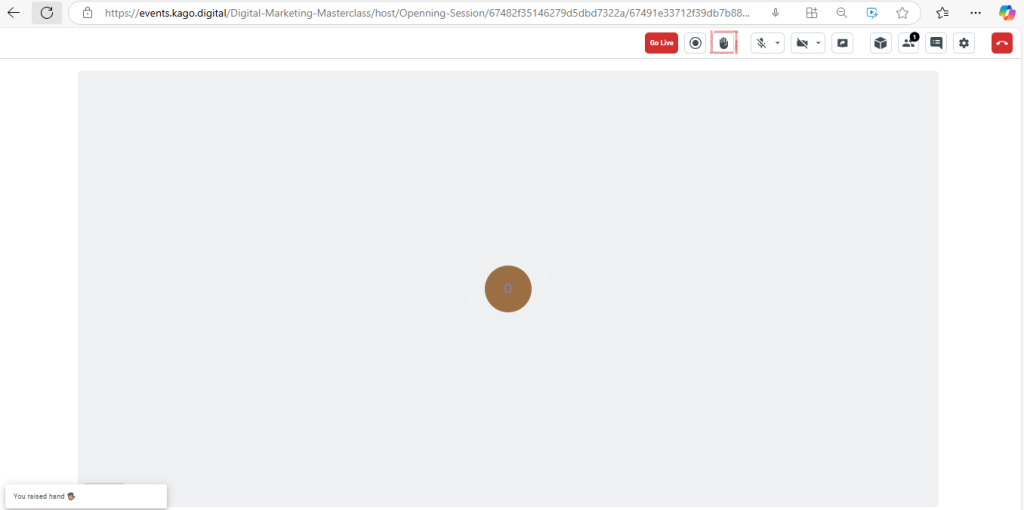
Chat or Q&A: Use the chat feature (if enabled) to interact with attendees.
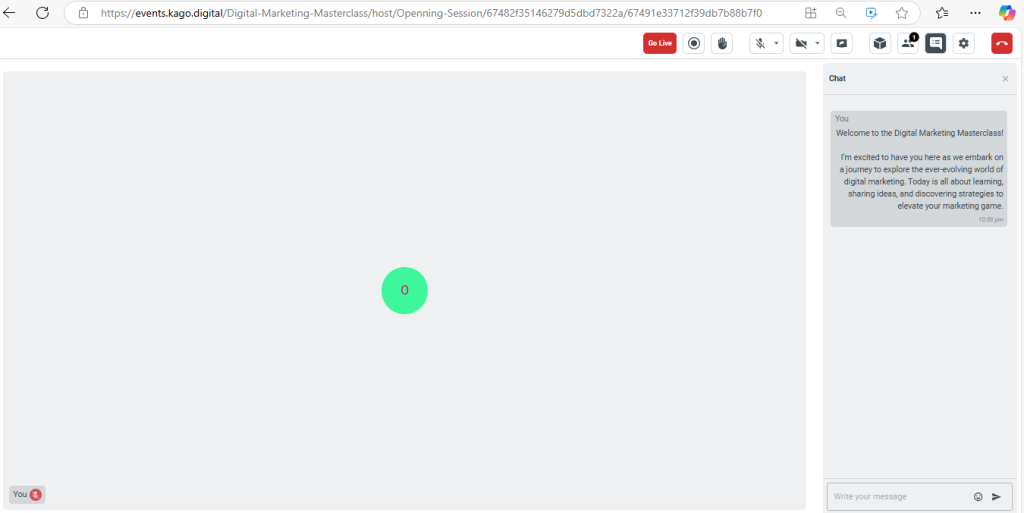
Adding Visual Elements
Customize your session with visual aids:
- Screen Sharing:
- Use the screen-sharing option to present slides, videos, or demos.
- Ensure you have the correct window or application selected before sharing.
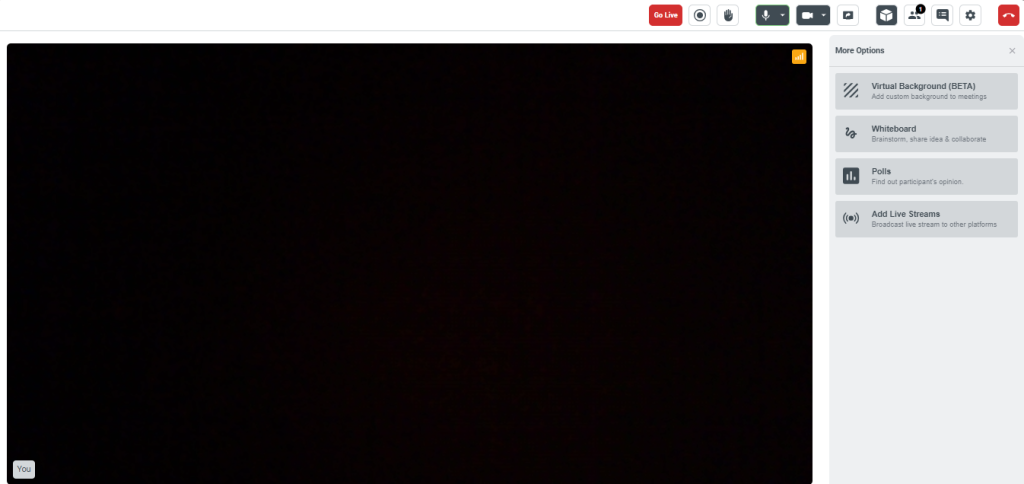
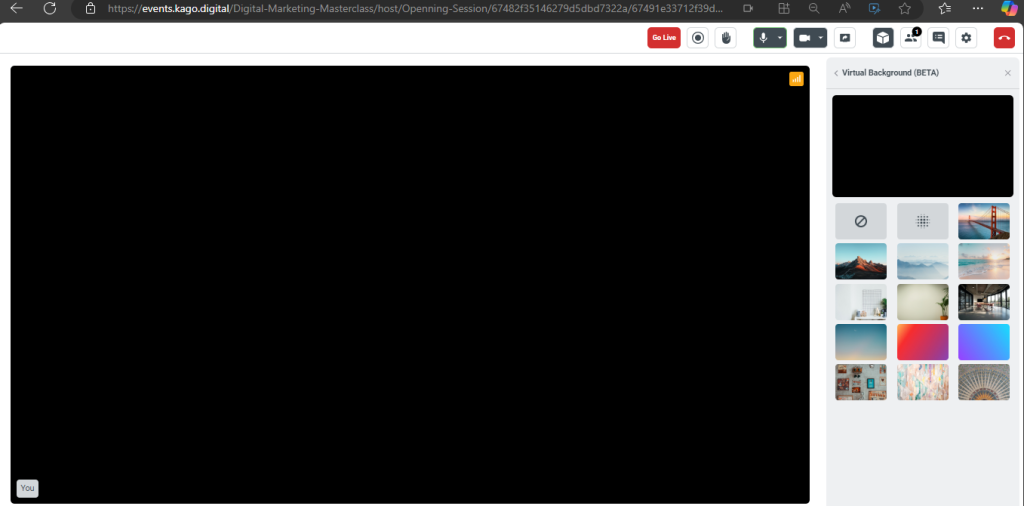
- Virtual Backgrounds:
- Customize your video background if the platform allows it.
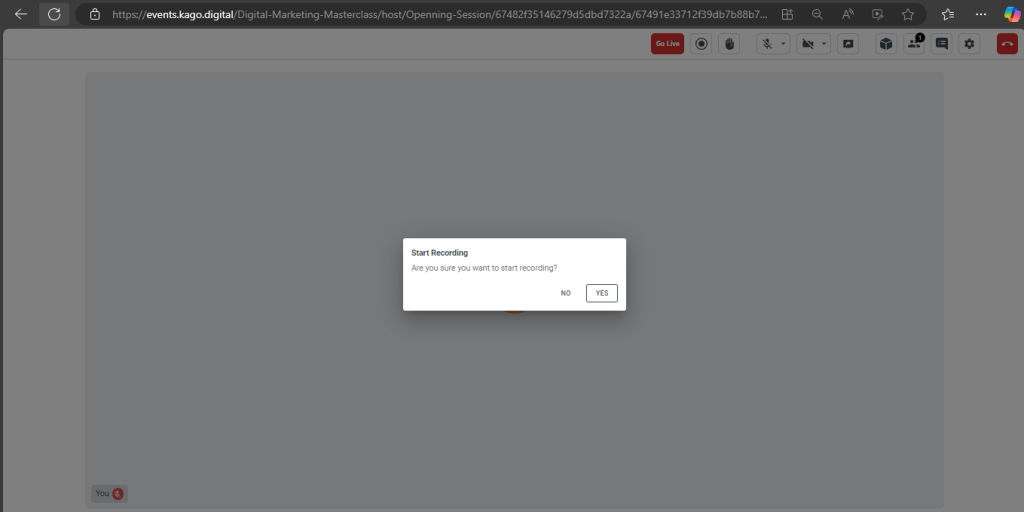
Recording Your Session
- If recording is enabled, ensure it starts before going live.
- Check with the event organizer for access to the recorded file after the session.
Monitoring Session Performance
- Check the signal bar icon (on the right side of the screen) to monitor your connection status. A strong connection ensures a smooth session.
Ending Your Session
- When your session is complete:
- Click the red “End Call” button at the bottom right corner to leave the session.
- Confirm to exit.
Thank you for being part of Kago Events! Contact support@kagoevents.com for assistance.