
To add and remove speakers for Kago Events, follow these steps:
- Go to the Participants Section
- In your Kago Events dashboard, select Participants from the menu on the left.
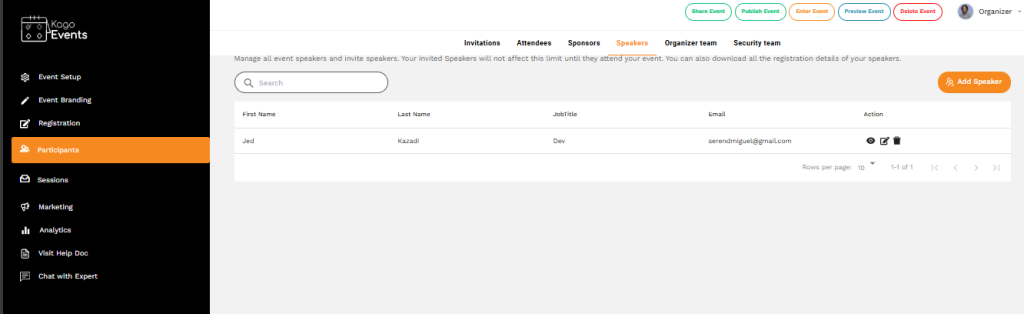
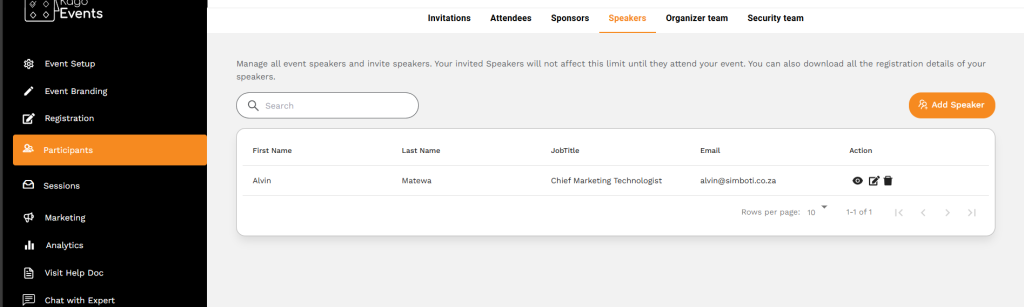
- Select the Speakers Tab
- In the top navigation within the Participants section, click on Speakers to view and manage your event speakers.
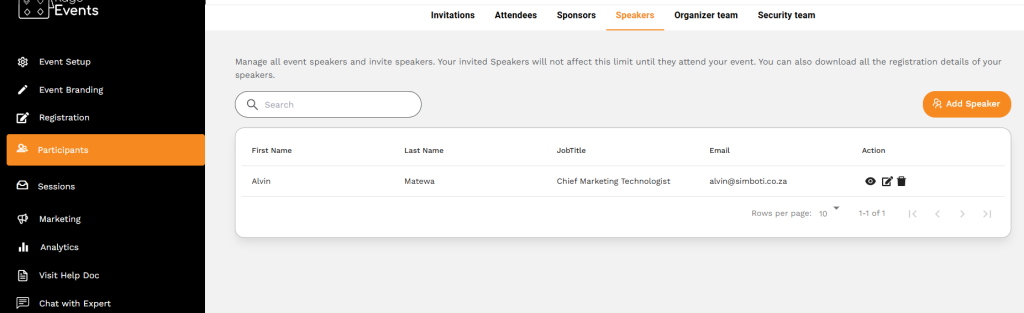
- Add a New Speaker
- Click on the Add Speaker button, usually located in the top-right corner. Enter the speaker’s details, such as their name, email, phone number, job title, organization, and bio. You can also upload a profile picture for a more personalized display.
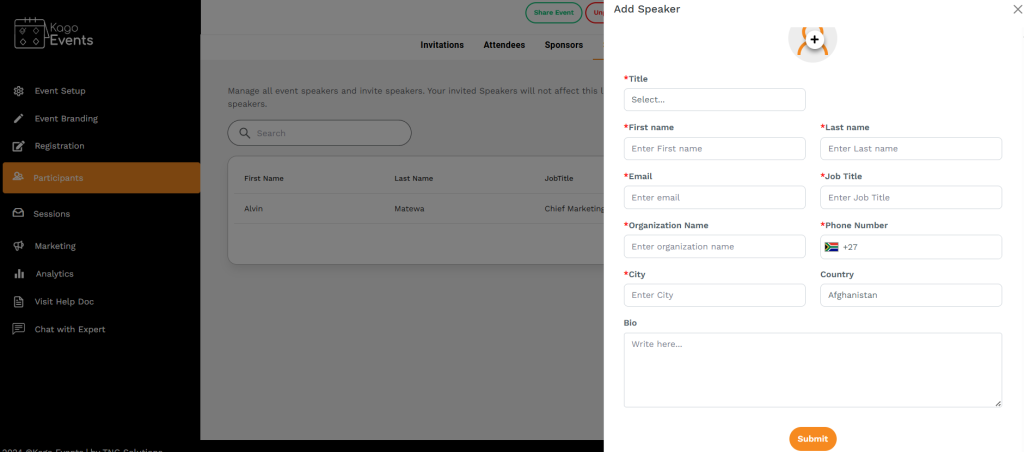
- Edit Speaker Details
- To edit a speaker’s information, locate the speaker on the list and click the Edit icon (pencil icon) next to their details. Update any necessary information and save your changes.
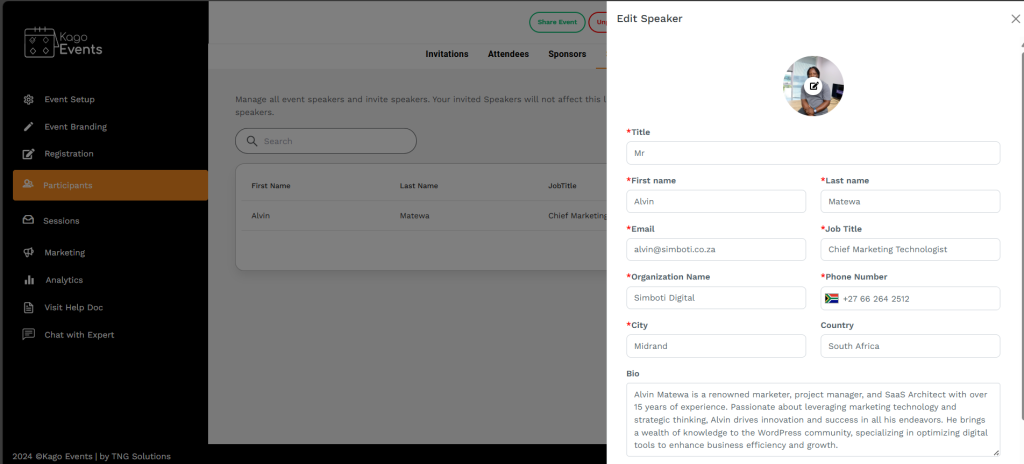
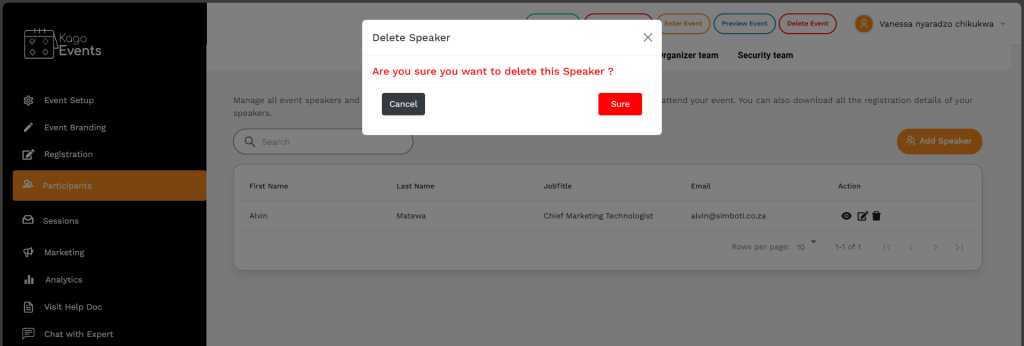
- Remove a speaker
- To remove someone from the speaker list, click the Delete icon (trash can icon) next to their information. Confirm the deletion if prompted.
- View Speaker Information
- To quickly view a speaker’s details without editing, click the View icon (eye icon) next to their entry.
By following these steps, you can effectively add, update, and manage your team of speakers in Kago Events, ensuring each speaker has the correct information and is represented accurately on your event page.