
As an event organizer, managing the registration form in Kago Events involves customizing it to capture the necessary details from your attendees. Here’s how to do it:
- Log In to Your Kago Events Account
- Sign into your Kago Events account and navigate to your event dashboard.
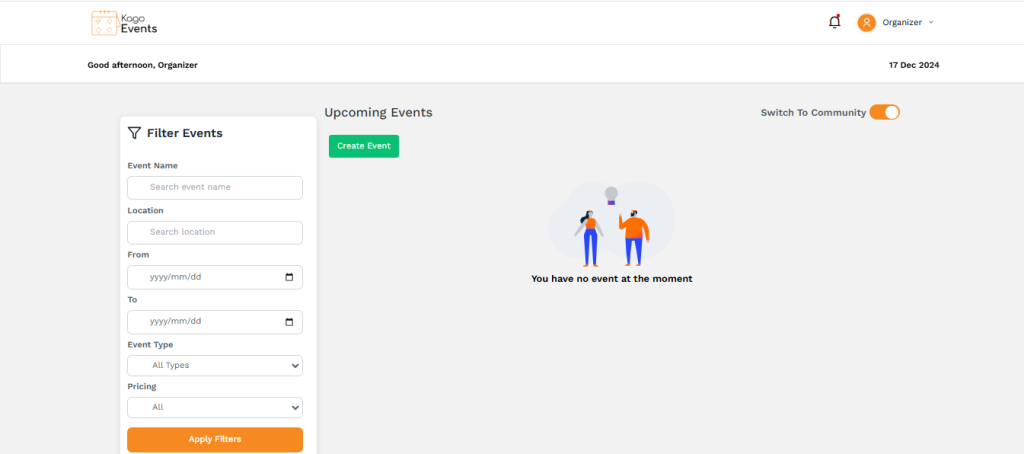
- Access Registration Form Settings
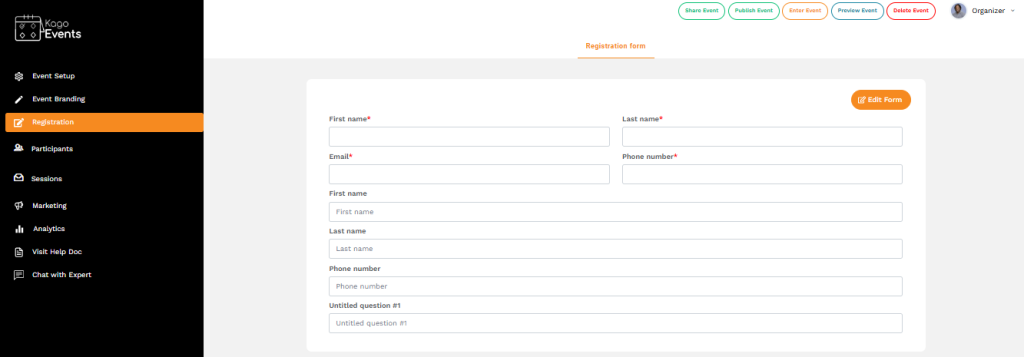
- Look for the Registration Form or Form Settings option within the event management section. This is where you can configure the fields and design of the form.
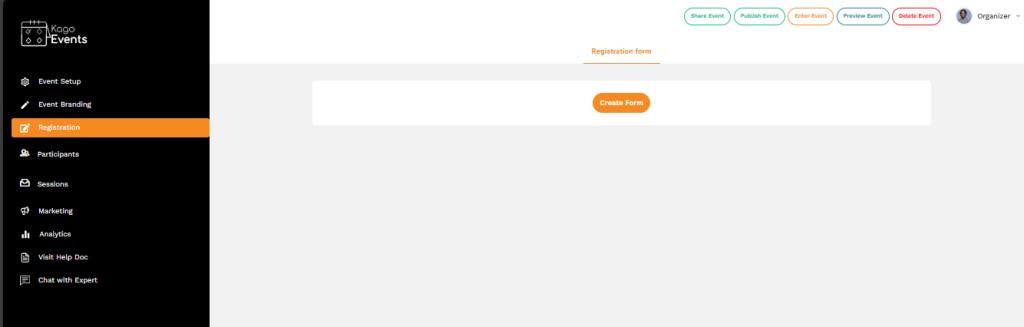
- Add or Remove Fields
- Determine what information you need from attendees and add fields accordingly. Standard fields might include name, email, and phone number. You can also add custom fields for specific information, such as job title, organization, or special requirements (e.g., accessibility needs).
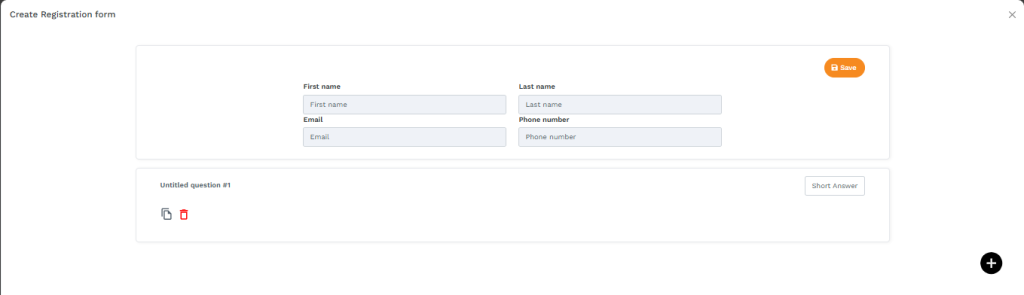
- Set Field Requirements
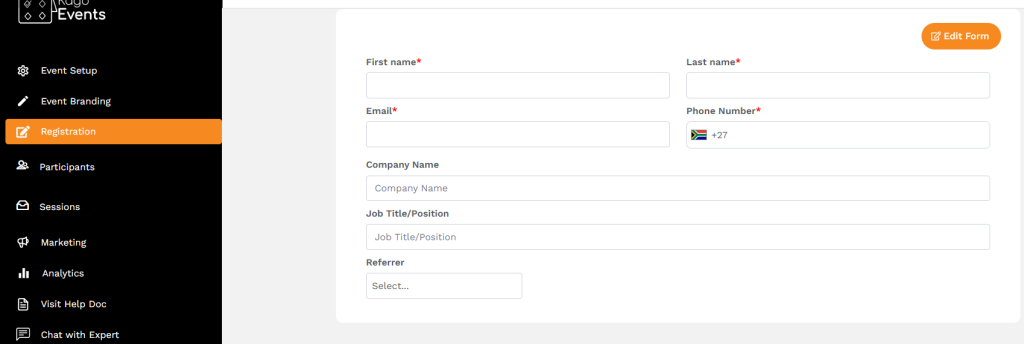
- Mark certain fields as required if they are essential for registration, like email addresses. Other fields, such as dietary preferences, can be optional.
- Use Conditional Logic
- Kago Events supports conditional logic, set up rules to show or hide fields based on responses. For example, if an attendee selects “Yes” for dietary restrictions, a new field could appear to specify those restrictions.
- Design the Form to Match Your Brand
- Customize the form’s appearance, including font style, color scheme, and button styles, to align with your event branding. This creates a cohesive and professional look for the registration process.
- Preview the Registration Form
- Before making the form live, preview it to verify that all fields are correct, required fields are clearly marked, and any conditional fields function as expected.
- Publish the Form
- Save your settings and publish the registration form. It will now be live for attendees to access when they register.
- Monitor Form Submissions
- As registrations come in, regularly check the form responses through Kago’s dashboard. This allows you to review attendee information and ensure you’re gathering all necessary details.
- Make Adjustments as Needed
- If you realize additional information is required or adjustments are needed, go back into the form settings to update fields, descriptions, or requirements.
By following these steps, you can effectively manage your registration form in Kago Events, ensuring it captures the necessary information while providing a smooth registration experience for your attendees.