
Getting started with Kago is easy! Here’s how to create an account:
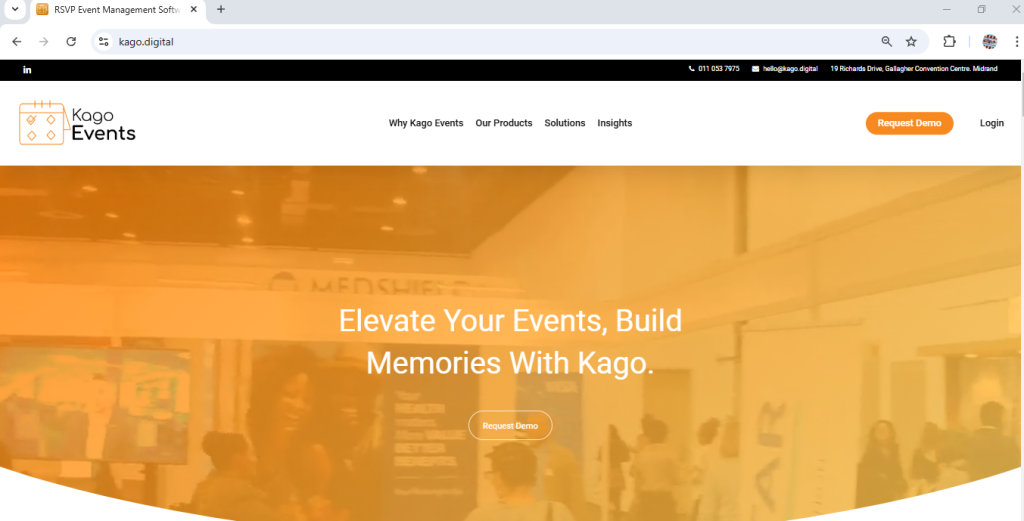
Visit the Kago Event Application Website
- Open your web browser and go to kago.digital.

Click on “Request demo.”
- You can easily find the “Request Demo” button on the right-hand side of the homepage. Simply click on it to begin the demo request process.
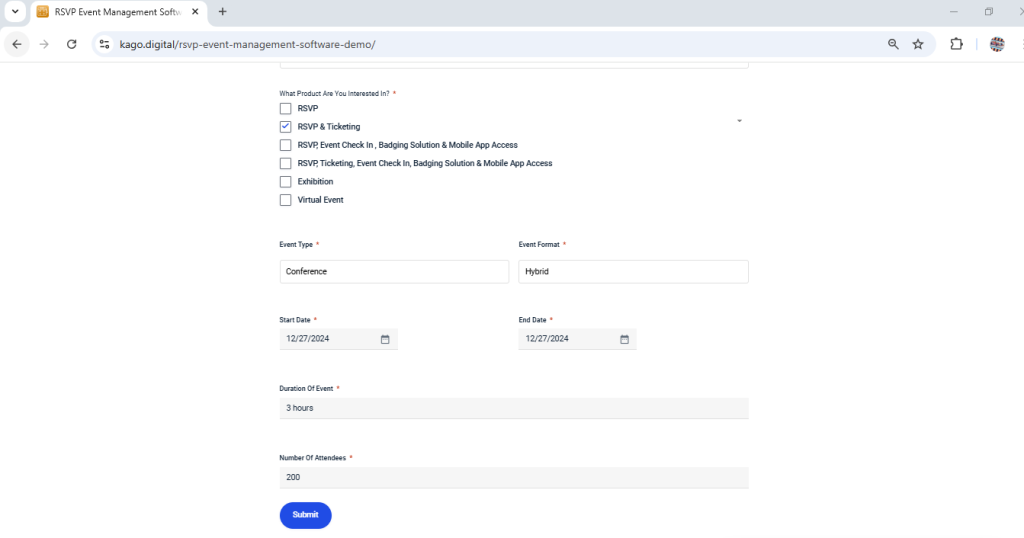
Fill Out Your Details
- Enter your name, email address, and a secure password. Make sure your password meets our security guidelines for a stronger account.

Fill out the Event Information Form by selecting your organization type, choosing the products you need, specifying event details (type, format, dates, duration, and attendees), and clicking Submit—ensure all required fields (*) are completed.
Receive a Quotation:
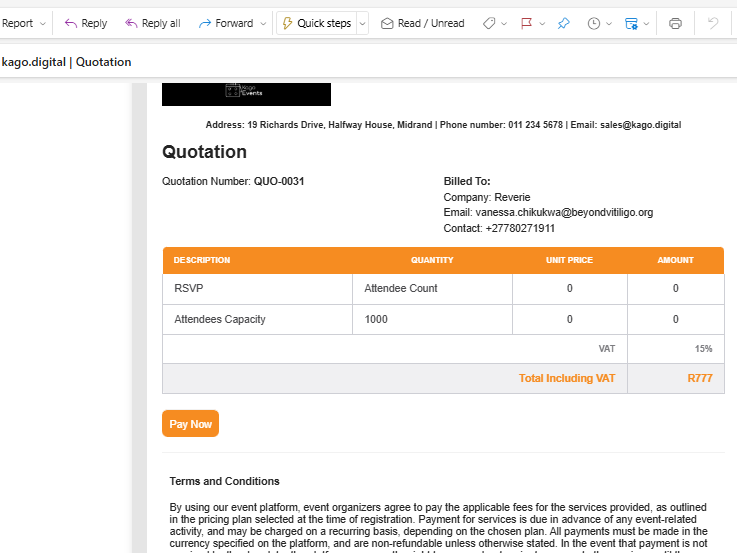
- Check your email for a message from Kago Events containing your quotation.
- Open the email to review the details of the quotation and payment instructions.
- Click the Pay Now button and follow the provided payment instructions to complete your payment.
Make a Payment:
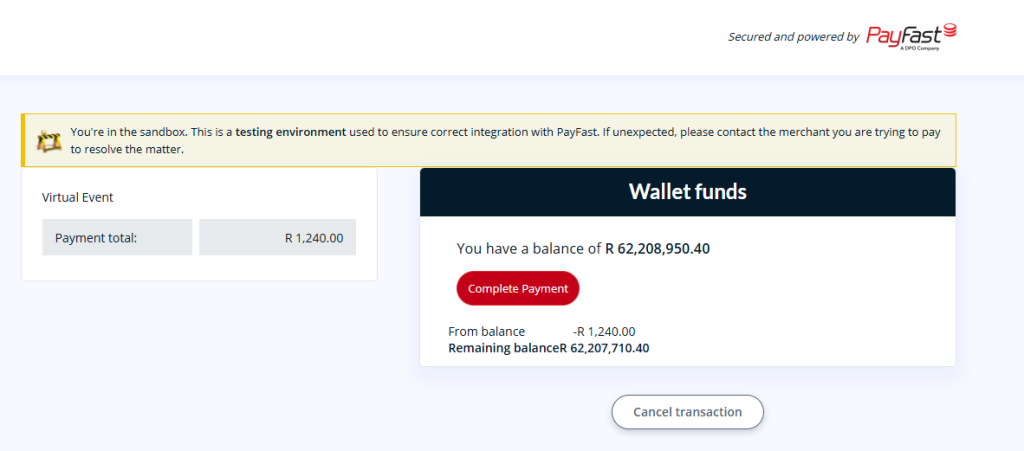
- Follow the payment instructions in the email.
- Complete the payment using your preferred method.
- Save the payment confirmation for your records.
Confirm Payment:
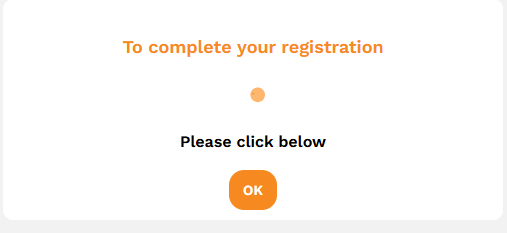
- Click the Ok button or the link in the email to confirm your payment.
- You’ll see a confirmation message and be redirected to the login page.
Access Your Account:
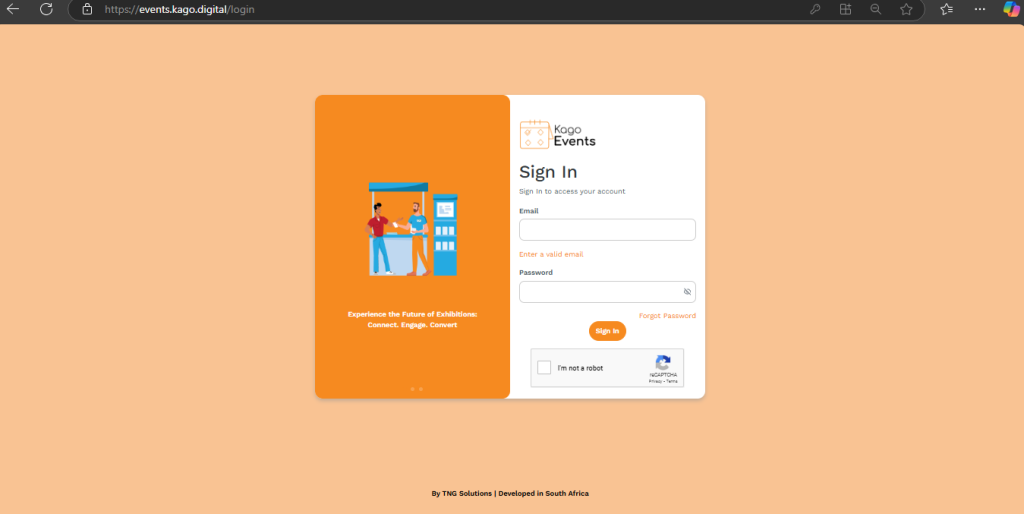
- Use the credentials sent to your email.
- On the login page, enter your email and password to access your account.
- Click Login to access your Kago Events dashboard.
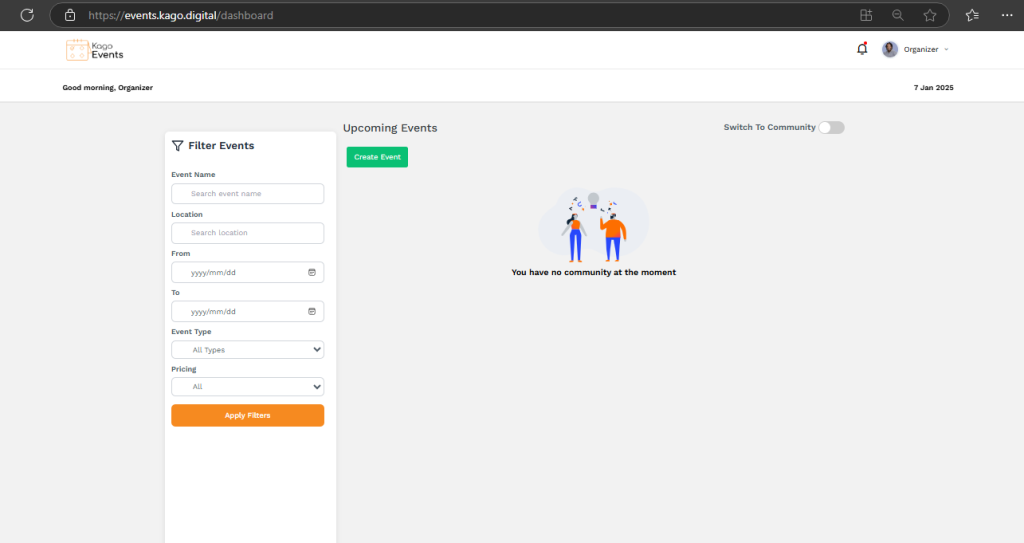
- Log in and set up your profile by adding any relevant information, like your organization name or event preferences. This helps customize your experience on the platform.
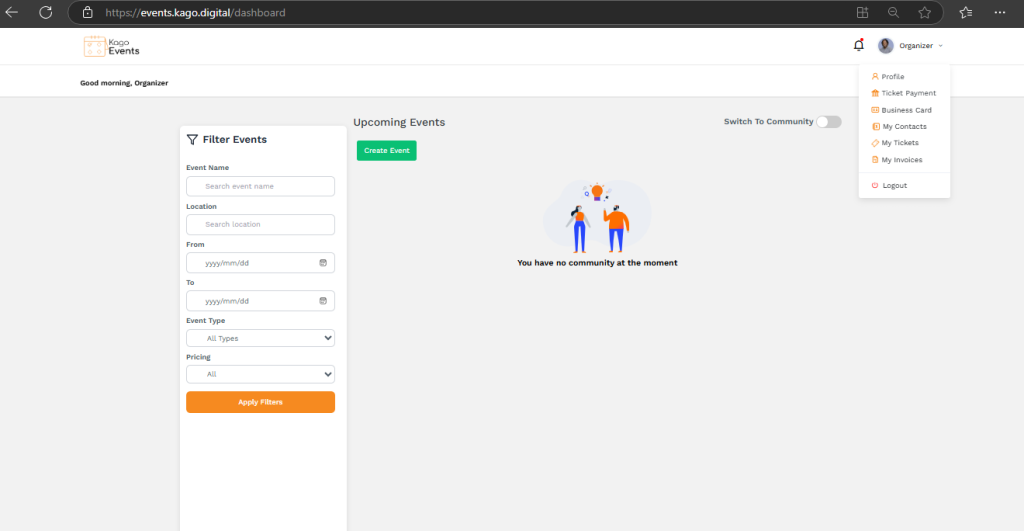
Access Profile
- Navigate to Profile from the top-right menu.
Edit Details
- Update Name, Password , Email, Phone (+country code), Organization Type, and Organization Name.
- Click the avatar edit icon to change your picture.
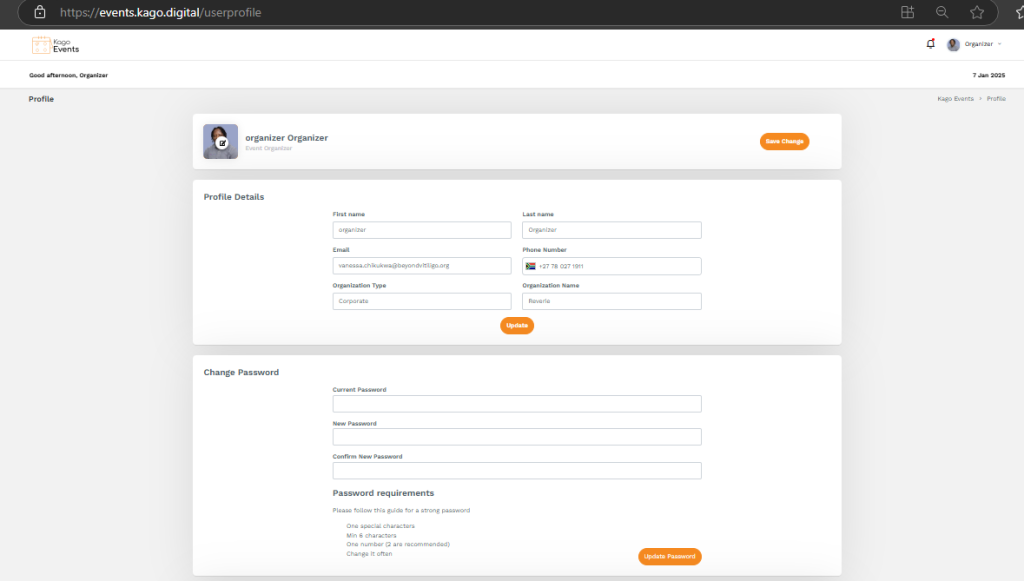
Save Changes
- Click Update to finalize.
Troubleshooting:
- If you encounter issues during sign-up, ensure that your email address is correctly entered.
- For further assistance, contact our support team at support@kago.digital.
Tip: If you’re part of a team, make sure to invite your team members to collaborate on events!